Tuesday, February 21, 2023
How to enable custom script in SharePoint Online using PowerShell
#Declare Variables
$MySiteurl = "https://Mohan.sharepoint.com/sites/Sales"
#Connect to Online
Connect-PnPOnline -Url $MySiteurl -Interactive
#sharepoint online allow custom scripts powershell
Set-PnPSite -Identity $MySiteurl -NoScriptSite $false

Wednesday, February 15, 2023
ShaerPoint Oline Powershell commandlets
Microsoft.Online.SharePoint.PowerShell
Add-SPOGeoAdministrator
Adds a new SharePoint user or security group as GeoAdministrator to a multi-geo tenant.
Add-SPOHubSiteAssociation
Associates a site with a hub site.
Add-SPOHubToHubAssociation
Associates a hub site to a hub site. Note: This feature is currently in preview and may not be available in your tenant.
Add-SPOOrgAssetsLibrary
Designates a library to be used as a central location for organization assets across the tenant.
Add-SPOSiteCollectionAppCatalog
Adds a Site Collection scoped App Catalog to a site.
Add-SPOSiteDesign
Creates a new site design available to users when they create a new site from the SharePoint home page.
Add-SPOSiteDesignTask
Similar to Invoke-SPOSiteDesign, this command is used to apply a published site design to a specified site collection target. It schedules the operation, allowing for the application of larger site scripts (Invoke-SPOSiteDesign is limited to 30 actions and subactions).
The supported site templates you can apply a site design to include: "modern" team site (with O365 group), "modern" team site (without an O365 group); communication site; classic team site; and classic publishing site.
Add-SPOSiteScript
Uploads a new site script for use either directly or in a site design.
Add-SPOTenantCdnOrigin
Configures a new origin to public or private content delivery network (CDN). Requires Tenant administrator permissions.
Add-SPOTheme
Creates a new custom theme, or overwrites an existing theme to modify its settings.
Add-SPOUser
Adds an existing Office 365 user or an Office 365 security group to a SharePoint group.
Approve-SPOTenantServicePrincipalPermissionGrant
Approves a permission request for the current tenant's "SharePoint Online Client" service principal.
Approve-SPOTenantServicePrincipalPermissionRequest
Approves a permission request for the current tenant's "SharePoint Online Client" service principal
Connect-SPOService
Connects a SharePoint Online administrator or Global Administrator to a SharePoint Online connection (the SharePoint Online Administration Center). This cmdlet must be run before any other SharePoint Online cmdlets can run.
ConvertTo-SPOMigrationEncryptedPackage
Use this Cmdlet to convert your XML files into a new encrypted migration package.
ConvertTo-SPOMigrationTargetedPackage
Use this cmdlet to convert your XML files into a new migration package.
Deny-SPOTenantServicePrincipalPermissionRequest
Denies a permission request for the current tenant's "SharePoint Online Client" service principal
Disable-SPOTenantServicePrincipal
Disables the current tenant's "SharePoint Online Client" service principal.
Disconnect-SPOService
Disconnects from a SharePoint Online service.
Enable-SPOCommSite
Enables the communication site experience on an existing classic team site. Please read instructions in modernize classic team site before attempting to execute this cmdlet.
Enable-SPOTenantServicePrincipal
Enables the current tenant's "SharePoint Online Client" service principal.
Export-SPOQueryLogs
Export query logs for a user in an Office 365 tenant.
Note
Beginning February 2022, we'll be removing the Export-SPOQueryLogs command from SharePoint in Microsoft 365. We encourage users to instead download their Microsoft Search query history logs from the My Account privacy portal.
Export-SPOUserInfo
Export user information from site user information list.
Export-SPOUserProfile
Export user profile data to csv file.
Get-FileSensitivityLabelInfo
Extracts and displays the sensitivity label related information attached to an office file stored in SharePoint.
Get-SPOAppErrors
Returns application errors.
Get-SPOAppInfo
Returns all installed applications.
Get-SPOBrowserIdleSignOut
Used to retrieve the current configuration values for Idle session sign-out policy.
Get-SPOBuiltInDesignPackageVisibility
Gets the visibility of the available built-in Design Packages.
Get-SPOBuiltInSiteTemplateSettings
Get the current state of Microsoft-provided SharePoint site templates displayed or hidden in the site template gallery in your tenant.
Get-SPOCrossGeoMovedUsers
In a multi-geo tenant returns the SharePoint Online user (or users) that had been moved.
Get-SPOCrossGeoMoveReport
Provides a report of objects moved between geo locations.
Get-SPOCrossGeoUsers
Returns the SharePoint Online users in a multi-geo tenant that match the criteria.
Get-SPODataEncryptionPolicy
.
Get-SPODeletedSite
Returns all deleted site collections from the Recycle Bin.
Get-SPOExternalUser
Returns external users in the tenant.
Get-SPOGeoAdministrator
This cmdlet returns the SharePoint Online user or security group accounts with Global Admin privileges in the current multi-geo tenant.
Get-SPOGeoMoveCrossCompatibilityStatus
This cmdlet returns the compatibility status between geographic locations.
Get-SPOGeoStorageQuota
This cmdlet gets the storage quota on a multi-geo tenant.
Get-SPOHideDefaultThemes
Queries the current SPOHideDefaultThemes setting. SPO stands for SharePoint Online.
Get-SPOHomeSite
Returns the home site url for your tenant.
Get-SPOHubSite
Lists hub sites or hub site information.
Get-SPOMalwareFile
Extracts and displays the malware-related information of an infected file stored in SharePoint.
Get-SPOMalwareFileContent
Gets the file stream associated with the malware-infected file stored in SharePoint.
Get-SPOMigrationJobProgress
Note: This cmdlet has been deprecated. To migrate to SharePoint and Microsoft 365 using PowerShell, see Migrate to SharePoint using PowerShell.
This cmdlet lets you report on SPO migration jobs that are in progress.
Get-SPOMigrationJobStatus
Note: This cmdlet has been deprecated. To migrate to SharePoint and Microsoft 365 using PowerShell, see Migrate to SharePoint using PowerShell.
Use this cmdlet to monitor the status of a submitted SharePoint Online migration job.
Get-SPOMultiGeoCompanyAllowedDataLocation
Returns the SharePoint Online Multi geo allowed data locations.
Get-SPOMultiGeoExperience
Use this cmdlet to get the multi geo experience mode.
Get-SPOOrgAssetsLibrary
Displays information about all libraries designated as locations for organization assets.
Get-SPOOrgNewsSite
Lists URLs of all the configured organizational news sites. Requires Tenant administrator permissions.
Get-SPOPublicCdnOrigins
This cmdlet returns a list of CDN Origins in your SharePoint Online Tenant
Get-SPOSite
Returns one or more site collections.
Get-SPOSiteCollectionAppCatalogs
Use this cmdlet to get the Site Collection App Catalog.
Get-SPOSiteContentMoveState
This Cmdlet allows a SharePoint administrators to check the status of a site or group move.
Get-SPOSiteDataEncryptionPolicy
Validates the encryption of a Group Site, Team Site, or OneDrive for Business site if a Customer Key has been registered for the site.
Get-SPOSiteDesign
Gets details about site designs that are on the SharePoint tenant. You can specify an ID of a specific site design to retrieve. If there are no parameters listed, details about all site designs are listed.
Get-SPOSiteDesignRights
Displays a list of principals and their rights for usage of the site design. This can be used to determine the scope that your site design has with users on the tenant.
Get-SPOSiteDesignRun
Retrieves a list of site designs applied to a specified site collection.
Get-SPOSiteDesignRunStatus
Retrieves and displays a list of all site script actions executed for a specified site design applied to a site.
Get-SPOSiteDesignTask
Cmdlet to get a scheduled site design script.
Get-SPOSiteGroup
Gets all the groups on the specified site collection.
Get-SPOSiteRenameState
Returns the current rename job state of a SharePoint Online Site.
Get-SPOSiteScript
Displays information about existing site scripts.
Get-SPOSiteScriptFromList
Creates site script syntax from an existing SharePoint list.
Get-SPOSiteScriptFromWeb
Creates site script syntax from an existing SharePoint site.
Get-SPOSiteUserInvitations
Searches against all stored sharing links and retrieves the email invites.
Get-SPOStorageEntity
Tenant properties allow tenant administrators to add properties in the app catalog that can be read by various SharePoint Framework components. Because tenant properties are stored in the tenant app catalog, you must provide the tenant app catalog site collection URL or the site collection app catalog URL in the following cmdlets. This cmdlet is used to get a value in the property bag.
Get-SPOStructuralNavigationCacheSiteState
Get the structural navigation caching state for a site collection.
Get-SPOStructuralNavigationCacheWebState
Get the structural navigation caching state for a web.
Get-SPOTenant
Returns SharePoint Online organization properties.
Get-SPOTenantCdnEnabled
Returns whether Public content delivery network (CDN) or Private CDN is enabled on the tenant level. Requires Tenant administrator permissions.
Get-SPOTenantCdnOrigins
Lists all the configured origins under the tenancy or under a given site. You must be a SharePoint Online administrator or Global Administrator to run this cmdlet.
Get-SPOTenantCdnPolicies
Get the public or private Policies applied on your SharePoint Online Tenant. Requires Tenant administrator permissions.
Get-SPOTenantContentTypeReplicationParameters
Gets content types for replication parameters
Get-SPOTenantLogEntry
Retrieves SharePoint Online company logs. This cmdlet is reserved for internal Microsoft use.
Get-SPOTenantLogLastAvailableTimeInUtc
Returns the most recent time when the SharePoint Online organization logs were collected.
Get-SPOTenantOrgRelation
Note: Currently this cmdlet is part of pre-release functionality and may not function in your tenant.
Get-SPOTenantOrgRelationByPartner
Note: Currently this cmdlet is part of pre-release functionality and may not function in your tenant.
Get-SPOTenantOrgRelationByScenario
Note: Currently this cmdlet is part of pre-release functionality and may not function in your tenant.
Get-SPOTenantRenameStatus
Important
This feature is currently available to organizations that have no more than 10,000 total SharePoint sites and OneDrive accounts combined.
Get the status of the job to change the SharePoint domain name for your organization in Microsoft 365.
Get-SPOTenantServicePrincipalPermissionGrants
Gets the collection of permission grants for the "SharePoint Online Client" service principal
Get-SPOTenantServicePrincipalPermissionRequests
Gets the collection of permission requests for the "SharePoint Online Client" service principal
Get-SPOTenantSyncClientRestriction
Returns the current configuration status.
Get-SPOTenantTaxonomyReplicationParameters
Get the replication parameters to manage Multi-Geo taxonomy replication.
Get-SPOTheme
Retrieves settings for an existing theme.
Get-SPOUnifiedGroup
Retrieves the Preferred Data Location for the specified Office 365 Group.
Get-SPOUnifiedGroupMoveState
Returns the state of an Office 365 Group move between Preferred Data Locations.
Get-SPOUser
Returns the SharePoint Online user or security group accounts that match a given search criteria.
Get-SPOUserAndContentMoveState
This cmdlet allows SharePoint administrators to check the status of a user or site move across geo locations.
Get-SPOUserOneDriveLocation
This cmdlet will return the user principal name, current location, and corresponding OneDrive for Business url, and the site ID. This cmdlet only supports Multi-Geo OneDrive sites.
Get-SPOWebTemplate
Displays all site templates that match the given identity.
Grant-SPOHubSiteRights
Grants rights to users or mail-enabled security groups to associate their site with a hub site.
Grant-SPOSiteDesignRights
Used to apply permissions to a set of users or a security group, effectively scoping the visibility of the site design in the UX. They start off public, but after you set permissions, only those groups or users with permissions can access the site design.
Invoke-SPOMigrationEncryptUploadSubmit
Note: This cmdlet has been deprecated. To migrate to SharePoint and Microsoft 365 using PowerShell, see Migrate to SharePoint using PowerShell.
Creates a new migration job in the target site collection.
Invoke-SPOSiteDesign
Applies a published site design to a specified site collection target. This allows a site design to be applied to an existing site collection. The supported site templates you can apply a site design to include: "modern" team site (with O365 group), "modern" team site (without an O365 group); communication site; classic team site; and classic publishing site.
Invoke-SPOSiteSwap
Invokes a job to swap the location of a site with another site while archiving the original site.
New-SPODataConnectionSetting
Creates a new Business Data Connectivity service connection.
New-SPOMigrationEncryptionParameters
Note: This cmdlet has been deprecated. To migrate to SharePoint and Microsoft 365 using PowerShell, see Migrate to SharePoint using PowerShell.
Creates a new random encryption key for a migration job or package.
New-SPOMigrationPackage
Note: This cmdlet has been deprecated. To migrate to SharePoint and Microsoft 365 using PowerShell, see Migrate to SharePoint using PowerShell.
Cmdlet to create a new migration package based on source files in a local or network shared folder.
New-SPOnlineApplicationPrincipalManagementServiceApplicationProxy
Creates a new SharePoint Online management Application Proxy Name
New-SPOPublicCdnOrigin
Creates a new public CDN on a document library in your SharePoint Online Tenant
New-SPOSdnProvider
Adds a new Software-Defined Networking (SDN) provider
New-SPOSite
Creates a new SharePoint Online site collection for the current company.
New-SPOSiteGroup
Creates a new group in a SharePoint Online site collection.
New-SPOTenantOrgRelation
Note: Currently this cmdlet is part of pre-release functionality and may not function in your tenant.
Register-SPODataEncryptionPolicy
Cmdlet to register customer encryption status for your geo tenant. For more information, see Controlling your data in Office 365 using Customer Key
Register-SPOHubSite
Enables the hub site feature on a site to make it a hub site. For more information visit SharePoint hub sites overview.
Remove-SPODataConnectionSetting
Removes a Business Connectivity Services connection.
Remove-SPODeletedSite
Removes a SharePoint Online deleted site collection from the Recycle Bin.
Remove-SPOExternalUser
Removes a collection of external users from the tenancy's folder.
Remove-SPOGeoAdministrator
Removes a new SharePoint user or security Group in the current Multi-Geo Tenant.
Remove-SPOHomeSite
Removes the current SharePoint Online Home site setting.
Remove-SPOHubSiteAssociation
Removes a site from its associated hub site.
Remove-SPOHubToHubAssociation
Removes the selected hub site from its parent hub.
Remove-SPOMigrationJob
Cmdlet to remove a previously created migration job from the specified site collection.
Remove-SPOMultiGeoCompanyAllowedDataLocation
Use this cmdlet to remove a multi geo allowed location.
Remove-SPOOrgAssetsLibrary
Removes a library that was designated as a central location for organization assets across the tenant.
Remove-SPOOrgNewsSite
Removes a given site from the list of organizational news sites based on its URL in your SharePoint Online Tenant
Remove-SPOPublicCdnOrigin
Removes a given public CDN origin based on its identity (id) in your SharePoint Online Tenant
Remove-SPOSdnProvider
Removes Software-Defined Networking (SDN) Support in your SharePoint Online tenant
Remove-SPOSite
Sends a SharePoint Online site collection to the SharePoint Online Recycle Bin.
Remove-SPOSiteCollectionAppCatalog
Removes the site collection app catalog.
Remove-SPOSiteCollectionAppCatalogById
Removes the site collection app catalog by the id of the site collection.
Remove-SPOSiteDesign
Removes a site design. It no longer appears in the UI for creating a new site.
Remove-SPOSiteDesignTask
Command to remove a scheduled site design script.
Remove-SPOSiteGroup
Removes a SharePoint Online group from a site collection.
Remove-SPOSiteScript
Removes a site script.
Remove-SPOSiteUserInvitations
.
Remove-SPOStorageEntity
Tenant properties allow tenant administrators to add properties in the app catalog that can be read by various SharePoint Framework components. Because tenant properties are stored in the tenant app catalog, you must provide the tenant app catalog site collection URL or the site collection app catalog URL in the following cmdlets. This cmdlet is used to remove a value in the property bag.
Remove-SPOTenantCdnOrigin
Removes a new origin from the Public or Private content delivery network (CDN). Requires Tenant administrator permissions.
Remove-SPOTenantOrgRelation
Note: Currently this cmdlet is part of pre-release functionality and may not function in your tenant.
Remove-SPOTenantSyncClientRestriction
Disables the feature for the tenancy.
Remove-SPOTheme
Removes a theme from the theme gallery.
Remove-SPOUser
Removes a user or a security group from a site collection or a group.
Remove-SPOUserInfo
Do not use.
Remove-SPOUserProfile
Remove user profile from the tenant.
Repair-SPOSite
Checks and repairs the site collection and its contents.
Request-SPOPersonalSite
Requests that one or more users be enqueued for a Personal Site to be created.
Request-SPOUpgradeEvaluationSite
Requests to create a copy of an existing site collection for the purposes of validating the effects of upgrade without affecting the original site.
Restore-SPODataEncryptionPolicy
Cmdlet to restore customer encryption status for your geo tenant when in recovery mode. For more information, see Controlling your data in Office 365 using Customer Key
Restore-SPODeletedSite
Restores a SharePoint Online deleted site collection from the Recycle Bin.
Revoke-SPOHubSiteRights
Revokes rights for specified principals to a hub.
Revoke-SPOSiteDesignRights
Revokes rights for specified principals from a site design.
Revoke-SPOTenantServicePrincipalPermission
Revokes a permission that was previously granted to the "SharePoint Online Client" service principal
Revoke-SPOUserSession
Provides IT administrators the ability to invalidate a particular users' O365 sessions across all their devices.
Set-SPOBrowserIdleSignOut
Sets the current configuration values for Idle session sign-out.
Set-SPOBuiltInDesignPackageVisibility
Sets the visibility of the available built-in Design Packages at moment of site creation.
Set-SPOBuiltInSiteTemplateSettings
Sets all or specific Microsoft-provided SharePoint site templates to be displayed or hidden in the site template gallery in your tenant. All site templates are displayed by default.
Set-SPODataConnectionSetting
Sets or updates global properties for a Microsoft Business Connectivity Services connection.
Set-SPODataConnectionSettingMetadata
Updates properties for the metadata of a Business Connectivity Services connection.
Set-SPODisableSpacesActivation
Disables the SharePoint Spaces activation.
Set-SPOGeoStorageQuota
This cmdlet sets the storage quota on a multi-geo tenant.
Set-SPOHideDefaultThemes
Specifies whether the default themes should be available.
Set-SPOHomeSite
Sets a SharePoint Site as a Home Site.
Set-SPOHubSite
Sets the hub site information such as name, logo, and description.
Set-SPOMigrationPackageAzureSource
Cmdlet to create Azure containers, upload migration package files into the appropriate containers and snapshot the uploaded content.
Set-SPOMultiGeoCompanyAllowedDataLocation
Adds a multi-geo allowed location.
Set-SPOMultiGeoExperience
Used to set a geo location into SPO mode.
Set-SPOOrgAssetsLibrary
Updates information for a library that is designated as a location for organization assets.
Set-SPOOrgNewsSite
Marks a site as one of multiple possible tenant's organizational news sites. Requires Global administrator or SharePoint administrator permissions.
Set-SPOSite
Sets or updates one or more properties' values for a site collection.
Set-SPOSiteDesign
Updates a previously uploaded site design.
Set-SPOSiteGroup
Updates the SharePoint Online owner and permission levels on a group inside a site collection.
Set-SPOSiteOffice365Group
Connects a top-level SPO site collection to a new Microsoft 365 Group.
Set-SPOSiteScript
Updates a previously uploaded site script.
Set-SPOStorageEntity
Tenant properties allow tenant administrators to add properties in the app catalog that can be read by various SharePoint Framework components. Because tenant properties are stored in the tenant app catalog, you must provide the tenant app catalog site collection URL or the site collection app catalog URL in the following cmdlets.
Set-SPOStructuralNavigationCacheSiteState
Enable or disable caching for all webs in a site collection.
Set-SPOStructuralNavigationCacheWebState
Enable or disable caching for a web in a site collection.
Set-SPOTenant
Sets properties on the SharePoint Online organization.
Set-SPOTenantCdnEnabled
Enables or disables Public content delivery network (CDN) or Private CDN on the tenant level. Requires Tenant administrator permissions.
Set-SPOTenantCdnPolicy
Sets the content delivery network (CDN) policies at the tenant level.
Set-SPOTenantContentTypeReplicationParameters
Select content types for replication
Set-SPOTenantSyncClientRestriction
Controls tenant-wide options and restrictions specific to syncing files.
Set-SPOTenantTaxonomyReplicationParameters
Select groups for replication
Set-SPOUnifiedGroup
Sets the Preferred Data Location (PDL) for the specified Office 365 Group. The customer tenant must be multi-geo enabled.
Set-SPOUser
Configures properties on an existing user.
Set-SPOWebTheme
Sets the theme for a SharePoint site.
Start-SPOSiteContentMove
Start a job to move a particular user or group of users to be moved across geo locations relative to the one that executes the command
Start-SPOSiteRename
Note
This Feature is part of the Admin Center Preview. If your tenant is not part of the Admin Center Preview, you will get an error when trying to run this cmdlet.
Starts a job to rename a site. You can change the URL, and optionally the site title along with changing the URL, of a site on a SharePoint Online collection.
Start-SPOTenantRename
Important
This feature is currently available to organizations that have no more than 10,000 total SharePoint sites and OneDrive accounts combined.
Starts a job to change the SharePoint domain name for your organization in Microsoft 365. For example, if the name of your organization changes from "Contoso" to "Fabrikam," you can change contoso.sharepoint.com to fabrikam.sharepoint.com.
Warning
Changing your SharePoint domain name might take several hours to days depending on the number of sites and OneDrive users that you have. We strongly recommend that you make this change during a period of low usage (like a weekend) and tell users to avoid accessing SharePoint and OneDrive content during the change. In addition, any actions that create new OneDrives and sites (such as creating a new team or private channel in Microsoft Teams) will be temporarily blocked during the rename.
Start-SPOUnifiedGroupMove
Initiates the move of an Office 365 Group to a new geo location
Start-SPOUserAndContentMove
Starts the ability to move a user closer to their sites.
Stop-SPOSiteContentMove
Stops a job to move a particular user or group of users to be moved across geo locations relative to the one that executes the command.
Stop-SPOTenantRename
Important
This feature is currently available to organizations that have no more than 10,000 total SharePoint sites and OneDrive accounts combined.
Cancels the scheduled job to change the SharePoint domain name for your organization in Microsoft 365.
Note
If the job to change the SharePoint domain name is already in progress, then it cannot be canceled or stopped.
Stop-SPOUserAndContentMove
In a Multi-Geo company, stops the ability to move a user's content related objects in a SharePoint Online Tenant
Submit-SPOMigrationJob
Note: This cmdlet has been deprecated. To migrate to SharePoint and Microsoft 365 using PowerShell, see Migrate to SharePoint using PowerShell.
Cmdlet to submit a new migration job referenced to a previously uploaded package in Azure Blob storage into to a site collection.
Test-SPOSite
Tests a SharePoint Online site collection.
Unlock-SPOSensitivityLabelEncryptedFile
It removes encryption on a Sensitivity label encrypted file in SharePoint Online. No need to download the file.
Unregister-SPOHubSite
Disables the hub site feature on a site.
Update-SPODataEncryptionPolicy
Updates customer encryption status for a geo tenant.
Update-UserType
Updates the specified user's UserType value from Azure AD.
Upgrade-SPOSite
Starts the upgrade process on a site collection.
Verify-SPOTenantOrgRelation
Note: Currently this cmdlet is part of pre-release functionality and may not function in your tenant.
Monday, February 13, 2023
SharePoint Online - “Save Site as Template” Link Missing?
1. To Enable custom scripts.
2. Login to SharePoint Online Admin Center.
3. Click on Settings from the left navigation >> Scroll down to the “Custom Script” section.
4. Set “Allow users to run custom script on personal site” and “Allow users to run custom script on self-service created sites” options.
5. Click on OK
#Used Parameters
$AdministratonSiteURL="https://Mohan-admin.sharepoint.com"
$MySiteURL="https://Mohan.sharepoint.com"
#Get Credentials to connect
$Cred = Get-Credential
#Connect to SharePoint Online Tenant Admin and Website
Connect-SPOService -URL $AdministratonSiteURL -Credential $Cred <
#Disable DenyAddAndCustomizePages Flag
Set-SPOSite $MySiteURL -DenyAddAndCustomizePages $False
Or
$userName = "mvmohan@Microsoft.com"
$Password = "Password@1"
$AdministratonSiteURL="https://DomainName-admin.sharepoint.com/"
$MySiteURL="https://DomainName.sharepoint.com/"
#Get Credentials to connect </br>
$Cred = New-Object -TypeName System.Management.Automation.PSCredential -argumentlist $userName, $(convertto-securestring $Password -asplaintext -force)
#Connect to SharePoint Online Tenant Admin and Website
Connect-SPOService -URL $AdministratonSiteURL -Credential $Cred
#Disable DenyAddAndCustomizePages Flag
Set-SPOSite $MySiteURL -DenyAddAndCustomizePages $False
Connect-SPOService : The term 'Connect-SPOService' is not recognized as the name of a cmdlet, function, script file, or operable program. Check the spelling of the name, or if a path was included, verify that the path is correct and try again.
Becasue you are not installed the SharePoint Online Management Shell Module.
1. To slove this Download and install the SharePoint Online Management Shell.
2. You can download from this link or you can find in Microsoft downloads.
https://www.microsoft.com/en-us/download/details.aspx?id=35588
Tuesday, July 16, 2019
Enable TLS 1.1 and TLS 1.2 support in SharePoint Server 2019
Enable TLS 1.1 and TLS 1.2 support in SharePoint Server 2019
SharePoint Server 2019 supports TLS protocol versions 1.0, 1.1, and 1.2 by default. However, to enable end-to-end support for TLS protocol versions 1.1 and 1.2 in your SharePoint 2019 environment, you may need to install updates or change configuration settings in the following locations:
- SharePoint servers in your SharePoint farm
- Microsoft SQL Servers in your SharePoint farm
- Client computers used to access your SharePoint sites
Important
If you do not update each of these locations, you run the risk of systems failing to connect to each other using TLS 1.1 or TLS 1.2. The systems will instead fall back to an older security protocol; and if the older security protocols are disabled, the systems may fail to connect entirely.
Example: Client computers may fail to connect to your SharePoint sites.
Summary of the update process
The following image shows the three step process necessary to enable TLS 1.1 and TLS 1.2 support on your SharePoint servers, SQL Servers, and client computers.
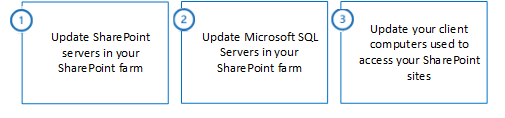
Step 1: Update SharePoint servers in your SharePoint farm
SharePoint Server 2019 supports TLS protocol versions 1.0, 1.1, and 1.2 by default. No changes are necessary on the SharePoint servers in your farm to enable TLS 1.1 or TLS 1.2 support. Follow this step to update your SharePoint server if you wish to disable certain TLS protocol versions.
| Steps for SharePoint Server | Windows Server 2016 | Windows Server 2019 |
|---|---|---|
| The following step is optional. You may choose to run this step based on your organization's security and compliance requirements. | ||
| 1.0 - Disable earlier versions of TLS in Windows Schannel | Optional | Optional |
1.0 - Disable earlier versions of TLS in Windows Schannel
SSL and TLS support are enabled or disabled in Windows Schannel by editing the Windows Registry. Each SSL and TLS protocol version can be enabled or disabled independently. You don't need to enable or disable one protocol version to enable or disable another protocol version.
Important
SSL 2.0 and SSL 3.0 are disabled by default in Windows Server 2016 and Windows Server 2019 due to serious security vulnerabilities in those protocol versions.
Customers may also choose to disable TLS 1.0 and TLS 1.1 to ensure that only the newest protocol version is used. However, this may cause compatibility issues with software that doesn't support the newest TLS protocol version. Customers should test such a change before performing it in production.
The Enabled registry value defines whether the protocol version can be used. If the value is set to 0, the protocol version cannot be used, even if it is enabled by default or if the application explicitly requests that protocol version. If the value is set to 1, the protocol version can be used if enabled by default or if the application explicitly requests that protocol version. If the value is not defined, it will use a default value determined by the operating system.
The DisabledByDefault registry value defines whether the protocol version is used by default. This setting only applies when the application doesn't explicitly request the protocol versions to be used. If the value is set to 0, the protocol version will be used by default. If the value is set to 1, the protocol version will not be used by default. If the value is not defined, it will use a default value determined by the operating system.
To disable TLS 1.0 support in Windows Schannel
- From Notepad.exe, create a text file named tls10-disable.reg.
- Copy, and then paste the following text.
Windows Registry Editor Version 5.00 [HKEY_LOCAL_MACHINE\SYSTEM\CurrentControlSet\Control\SecurityProviders\SCHANNEL\Protocols\TLS 1.0] [HKEY_LOCAL_MACHINE\SYSTEM\CurrentControlSet\Control\SecurityProviders\SCHANNEL\Protocols\TLS 1.0\Client] "DisabledByDefault"=dword:00000001 "Enabled"=dword:00000000 [HKEY_LOCAL_MACHINE\SYSTEM\CurrentControlSet\Control\SecurityProviders\SCHANNEL\Protocols\TLS 1.0\Server] "DisabledByDefault"=dword:00000001 "Enabled"=dword:00000000 - Save the tls10-disable.reg file.
- Double-click the tls10-disable.reg.
- Click Yes to update your Windows Registry with these changes.
- Restart your computer for the change to take effect.
To disable TLS 1.1 support in Windows Schannel
- From Notepad.exe, create a text file named tls11-disable.reg.
- Copy, and then paste the following text.
Windows Registry Editor Version 5.00 [HKEY_LOCAL_MACHINE\SYSTEM\CurrentControlSet\Control\SecurityProviders\SCHANNEL\Protocols\TLS 1.1] [HKEY_LOCAL_MACHINE\SYSTEM\CurrentControlSet\Control\SecurityProviders\SCHANNEL\Protocols\TLS 1.1\Client] "DisabledByDefault"=dword:00000001 "Enabled"=dword:00000000 [HKEY_LOCAL_MACHINE\SYSTEM\CurrentControlSet\Control\SecurityProviders\SCHANNEL\Protocols\TLS 1.1\Server] "DisabledByDefault"=dword:00000001 "Enabled"=dword:00000000 - Save the tls11-disable.reg file.
- Double-click the tls11-disable.reg file.
- Click Yes to update your Windows Registry with these changes.
- Restart your computer for the change to take effect.
Step 2: Update your Microsoft SQL Servers in your SharePoint farm
SQL Server 2016 and SQL Server 2017 support TLS protocol versions 1.0, 1.1, and 1.2 by default on Windows Server 2016 and Windows Server 2019. No changes are necessary on the SQL servers in your SharePoint farm to enable TLS 1.1 or TLS 1.2 support. For more information about TLS support in SQL Server, review the KB article TLS 1.2 support for Microsoft SQL Server.
Follow this step to update the SQL Servers in your SharePoint farm if you wish to disable certain TLS protocol versions.
| Steps for your SQL Servers | Windows Server 2016 | Windows Server 2019 |
|---|---|---|
| The following step is optional. You may choose to run this step based on your organization's security and compliance requirements. | ||
| 2.1 - Disable earlier versions of TLS in Windows Schannel | Optional | Optional |
2.1 - Disable earlier versions of TLS in Windows Schannel
SSL and TLS support are enabled or disabled in Windows Schannel by editing the Windows Registry. Each SSL and TLS protocol version can be enabled or disabled independently. You don't need to enable or disable one protocol version to enable or disable another protocol version.
Important
SSL 2.0 and SSL 3.0 are disabled by default in Windows Server 2016 and Windows Server 2019 due to serious security vulnerabilities in those protocol versions.
Customers may also choose to disable TLS 1.0 and TLS 1.1 to ensure that only the newest protocol version is used. However, this may cause compatibility issues with software that doesn't support the newest TLS protocol version. Customers should test such a change before performing it in production.
The Enabled registry value defines whether the protocol version can be used. If the value is set to 0, the protocol version cannot be used, even if it is enabled by default or if the application explicitly requests that protocol version. If the value is set to 1, the protocol version can be used if enabled by default or if the application explicitly requests that protocol version. If the value is not defined, it will use a default value determined by the operating system.
The DisabledByDefault registry value defines whether the protocol version is used by default. This setting only applies when the application doesn't explicitly request the protocol versions to be used. If the value is set to 0, the protocol version will be used by default. If the value is set to 1, the protocol version will not be used by default. If the value is not defined, it will use a default value determined by the operating system.
To disable TLS 1.0 support in Windows Schannel
- From Notepad.exe, create a text file named tls10-disable.reg.
- Copy, and then paste the following text.
Windows Registry Editor Version 5.00 [HKEY_LOCAL_MACHINE\SYSTEM\CurrentControlSet\Control\SecurityProviders\SCHANNEL\Protocols\TLS 1.0] [HKEY_LOCAL_MACHINE\SYSTEM\CurrentControlSet\Control\SecurityProviders\SCHANNEL\Protocols\TLS 1.0\Client] "DisabledByDefault"=dword:00000001 "Enabled"=dword:00000000 [HKEY_LOCAL_MACHINE\SYSTEM\CurrentControlSet\Control\SecurityProviders\SCHANNEL\Protocols\TLS 1.0\Server] "DisabledByDefault"=dword:00000001 "Enabled"=dword:00000000 - Save the tls10-disable.reg file.
- Double-click the tls10-disable.reg file.
- Click Yes to update your Windows Registry with these changes.
- Restart your computer for the change to take effect.
To disable TLS 1.1 support in Windows Schannel
- From Notepad.exe, create a text file named tls11-disable.reg.
- Copy, and then paste the following text.
Windows Registry Editor Version 5.00 [HKEY_LOCAL_MACHINE\SYSTEM\CurrentControlSet\Control\SecurityProviders\SCHANNEL\Protocols\TLS 1.1] [HKEY_LOCAL_MACHINE\SYSTEM\CurrentControlSet\Control\SecurityProviders\SCHANNEL\Protocols\TLS 1.1\Client] "DisabledByDefault"=dword:00000001 "Enabled"=dword:00000000 [HKEY_LOCAL_MACHINE\SYSTEM\CurrentControlSet\Control\SecurityProviders\SCHANNEL\Protocols\TLS 1.1\Server] "DisabledByDefault"=dword:00000001 "Enabled"=dword:00000000 - Save the tls11-disable.reg file.
- Double-click the tls11-disable.reg file.
- Click Yes to update your Windows Registry with these changes.
- Restart your computer for the change to take effect.
Step 3: Update your client computers used to access your SharePoint sites
Follow these steps to update your client computers that access your SharePoint site.
| Steps for your client computers | Windows 7 | Windows 8.1 | Windows 10 |
|---|---|---|---|
| 3.1 - Enable TLS 1.1 and TLS 1.2 in Windows Schannel | Required | N/A | N/A |
| 3.2 - Enable TLS 1.1 and TLS 1.2 support in WinHTTP | Required | N/A | N/A |
| 3.3 - Enable TLS 1.1 and TLS 1.2 support in Internet Explorer | Required | N/A | N/A |
| 3.4 - Enable strong cryptography in .NET Framework 4.5 or higher | Required | Required | Required |
| 3.5 - Install .NET Framework 3.5 update for TLS 1.1 and TLS 1.2 support | Required | Required | Required |
| The following step is recommended. Although not directly required by SharePoint Server 2019, they provide better security by restricting the use of weak encryption algorithms. | |||
| 3.6 - Enable strong cryptography in .NET Framework 3.5 | Recommended | Recommended | Recommended |
| The following step is optional. You may choose to run this step based on your organization's security and compliance requirements. | |||
| 3.7 - Disable earlier versions of SSL and TLS in Windows Schannel | Optional | Optional | Optional |
3.1 - Enable TLS 1.1 and TLS 1.2 in Windows Schannel
SSL and TLS support are enabled or disabled in Windows Schannel by editing the Windows Registry. Each SSL and TLS protocol version can be enabled or disabled independently. You don't need to enable or disable one protocol version to enable or disable another protocol version.
The Enabled registry value defines whether the protocol version can be used. If the value is set to 0, the protocol version cannot be used, even if it is enabled by default or if the application explicitly requests that protocol version. If the value is set to 1, the protocol version can be used if enabled by default or if the application explicitly requests that protocol version. If the value is not defined, it will use a default value determined by the operating system.
The DisabledByDefault registry value defines whether the protocol version is used by default. This setting only applies when the application doesn't explicitly request the protocol versions to be used. If the value is set to 0, the protocol version will be used by default. If the value is set to 1, the protocol version will not be used by default. If the value is not defined, it will use a default value determined by the operating system.
To enable TLS 1.1 support in Windows Schannel
- From Notepad.exe, create a text file named tls11-enable.reg.
- Copy, and then paste the following text.
Windows Registry Editor Version 5.00 [HKEY_LOCAL_MACHINE\SYSTEM\CurrentControlSet\Control\SecurityProviders\SCHANNEL\Protocols\TLS 1.1] [HKEY_LOCAL_MACHINE\SYSTEM\CurrentControlSet\Control\SecurityProviders\SCHANNEL\Protocols\TLS 1.1\Client] "DisabledByDefault"=dword:00000000 "Enabled"=dword:00000001 [HKEY_LOCAL_MACHINE\SYSTEM\CurrentControlSet\Control\SecurityProviders\SCHANNEL\Protocols\TLS 1.1\Server] "DisabledByDefault"=dword:00000000 "Enabled"=dword:00000001 - Save the tls11-enable.reg file.
- Double-click the tls11-enable.reg file.
- Click Yes to update your Windows Registry with these changes.
- Restart your computer for the change to take effect.
To enable TLS 1.2 support in Windows Schannel
- From Notepad.exe, create a text file named tls12-enable.reg.
- Copy, and then paste the following text.
Windows Registry Editor Version 5.00 [HKEY_LOCAL_MACHINE\SYSTEM\CurrentControlSet\Control\SecurityProviders\SCHANNEL\Protocols\TLS 1.2] [HKEY_LOCAL_MACHINE\SYSTEM\CurrentControlSet\Control\SecurityProviders\SCHANNEL\Protocols\TLS 1.2\Client] "DisabledByDefault"=dword:00000000 "Enabled"=dword:00000001 [HKEY_LOCAL_MACHINE\SYSTEM\CurrentControlSet\Control\SecurityProviders\SCHANNEL\Protocols\TLS 1.2\Server] "DisabledByDefault"=dword:00000000 "Enabled"=dword:00000001 - Save the tls12-enable.reg file.
- Double-click the tls12-enable.reg file.
- Click Yes to update your Windows Registry with these changes.
- Restart your computer for the change to take effect.
3.2 - Enable TLS 1.1 and TLS 1.2 support in WinHTTP
WinHTTP doesn't inherit its SSL and TLS encryption protocol version defaults from the Windows Schannel DisabledByDefault registry value. WinHTTP uses its own SSL and TLS encryption protocol version defaults, which vary by operating system. To override the defaults, you must install a KB update and configure Windows Registry keys.
The WinHTTP DefaultSecureProtocols registry value is a bit field that accepts multiple values by adding them together into a single value. You can use the Windows Calculator program (Calc.exe) in Programmer mode to add the following hexadecimal values as desired.
| DefaultSecureProtocols value | Description |
|---|---|
| 0x00000008 | Enable SSL 2.0 by default |
| 0x00000020 | Enable SSL 3.0 by default |
| 0x00000080 | Enable TLS 1.0 by default |
| 0x00000200 | Enable TLS 1.1 by default |
| 0x00000800 | Enable TLS 1.2 by default |
For example, you can enable TLS 1.0, TLS 1.1, and TLS 1.2 by default by adding the values 0x00000080, 0x00000200, and 0x00000800 together to form the value 0x00000A80.
To install the WinHTTP KB update, follow the instructions from the KB article Update to enable TLS 1.1 and TLS 1.2 as a default secure protocols in WinHTTP in Windows
To enable TLS 1.0, TLS 1.1, and TLS 1.2 by default in WinHTTP
- From Notepad.exe, create a text file named winhttp-tls10-tls12-enable.reg.
- Copy, and then paste the following text.For 64-bit operating system
Windows Registry Editor Version 5.00
[HKEY_LOCAL_MACHINE\SOFTWARE\Microsoft\Windows\CurrentVersion\Internet Settings\WinHttp]
"DefaultSecureProtocols"=dword:00000A80
[HKEY_LOCAL_MACHINE\SOFTWARE\Wow6432Node\Microsoft\Windows\CurrentVersion\Internet Settings\WinHttp]
"DefaultSecureProtocols"=dword:00000A80
For 32-bit operating systemWindows Registry Editor Version 5.00 [HKEY_LOCAL_MACHINE\SOFTWARE\Microsoft\Windows\CurrentVersion\Internet Settings\WinHttp] "DefaultSecureProtocols"=dword:00000A80 - Save the winhttp-tls10-tls12-enable.reg file.
- Double-click the winhttp-tls10-tls12-enable.reg file.
- Click Yes to update your Windows Registry with these changes.
- Restart your computer for the change to take effect.
3.3 - Enable TLS 1.1 and TLS 1.2 support in Internet Explorer
Internet Explorer versions earlier than Internet Explorer 11 did not enable TLS 1.1 or TLS 1.2 support by default. Support for TLS 1.1 and TLS 1.2 is enabled by default starting with Internet Explorer 11.
To enable TLS 1.1 and TLS 1.2 support in Internet Explorer
- From Internet Explorer, click Tools > Internet Options > Advanced or click
 > Internet Options > Advanced.
 - In the Security section, verify that the following check boxes are selected. If not, click the following check boxes:
- Use TLS 1.1
- Use TLS 1.2
- Optionally, if you want to disable support for earlier security protocol versions, uncheck the following check boxes:
- Use SSL 2.0
- Use SSL 3.0
- Use TLS 1.0NoteDisabling TLS 1.0 may cause compatibility issues with sites that don't support newer security protocol versions. Customers should test this change before performing it in production.
- Click OK.
3.4 - Enable strong cryptography in .NET Framework 4.5 or higher
.NET Framework 4.5 and higher doesn't inherit its SSL and TLS security protocol version defaults from the Windows Schannel DisabledByDefault registry value. Instead, it uses its own SSL and TLS security protocol version defaults. To override the defaults, you must configure Windows Registry keys.
The SchUseStrongCrypto registry value changes the .NET Framework 4.5 and higher security protocol version default from SSL 3.0 or TLS 1.0 to TLS 1.0 or TLS 1.1 or TLS 1.2. In addition, it restricts the use of encryption algorithms with TLS that are considered weak such as RC4.
Applications compiled for .NET Framework 4.6 or higher will behave as if the SchUseStrongCryptoregistry value is set to 1, even if it isn't. To ensure all .NET Framework applications will use strong cryptography, you must configure this Windows Registry value.
Microsoft has released an optional security update for .NET Framework 4.5, 4.5.1, and 4.5.2 that will automatically configure the Windows Registry keys for you. No updates are available for .NET Framework 4.6 or higher. You must manually configure the Windows Registry keys on .NET Framework 4.6 or higher.
For Windows 7 and Windows Server 2008 R2
- To enable strong cryptography in .NET Framework 4.5 and 4.5.1 on Windows 7 and Windows Server 2008 R2, see the KB article Description of the security update for the .NET Framework 4.5 and the .NET Framework 4.5.1 on Windows 7 Service Pack 1 and Windows Server 2008 R2 Service Pack 1: May 13, 2014.
- To enable strong cryptography in .NET Framework 4.5.2 on Windows 7 and Windows Server 2008 R2, see the KB article Description of the security update for the .NET Framework 4.5.2 on Windows 7 Service Pack 1 and Windows Server 2008 R2 Service Pack 1: May 13, 2014.
For Windows Server 2012
- To enable strong cryptography in .NET Framework 4.5, 4.5.1, and 4.5.2 on Windows Server 2012, see the KB article Description of the security update for the .NET Framework 4.5, the .NET Framework 4.5.1, and the .NET Framework 4.5.2 on Windows 8, Windows RT, and Windows Server 2012: May 13, 2014.
For Windows 8.1 and Windows Server 2012 R2
- To enable strong cryptography in .NET Framework 4.5.1 and 4.5.2 on Windows 8.1 and Windows Server 2012 R2, see the KB article Description of the security update for the .NET Framework 4.5.1 and the .NET Framework 4.5.2 on Windows 8.1, Windows RT 8.1, and Windows Server 2012 R2: May 13, 2014.
To enable strong cryptography in .NET Framework 4.6 or higher
- From Notepad.exe, create a text file named net46-strong-crypto-enable.reg.
- Copy, and then paste the following text.For 64-bit operating system
Windows Registry Editor Version 5.00
[HKEY_LOCAL_MACHINE\SOFTWARE\Microsoft\.NETFramework\v4.0.30319]
"SchUseStrongCrypto"=dword:00000001
[HKEY_LOCAL_MACHINE\SOFTWARE\Wow6432Node\Microsoft\.NETFramework\v4.0.30319]
"SchUseStrongCrypto"=dword:00000001
For 32-bit operating systemWindows Registry Editor Version 5.00 [HKEY_LOCAL_MACHINE\SOFTWARE\Microsoft\.NETFramework\v4.0.30319] "SchUseStrongCrypto"=dword:00000001 - Save the net46-strong-crypto-enable.reg file.
- Double-click the net46-strong-crypto-enable.reg file.
- Click Yes to update your Windows Registry with these changes.
- Restart your computer for the change to take effect.
3.5 - Install .NET Framework 3.5 update for TLS 1.1 and TLS 1.2 support
.NET Framework 3.5 doesn't support TLS 1.1 or TLS 1.2 by default. To add support for TLS 1.1 and TLS 1.2, you must install a KB update and configure Windows Registry keys for each of the operating systems listed in this section.
The SystemDefaultTlsVersions registry value defines which security protocol version defaults will be used by .NET Framework 3.5. If the value is set to 0, .NET Framework 3.5 will default to SSL 3.0 or TLS 1.0. If the value is set to 1, .NET Framework 3.5 will inherit its defaults from the Windows Schannel DisabledByDefault registry values. If the value is undefined, it will behave as if the value is set to 0.
To enable .NET Framework 3.5 to inherit its encryption protocol defaults from Windows Schannel
For Windows 7 and Windows Server 2008 R2
- To install the .NET Framework 3.5.1 update for Windows 7 and Windows Server 2008 R2, see the KB article Support for TLS System Default Versions included in the .NET Framework 3.5.1 on Windows 7 SP1 and Server 2008 R2 SP1
- After the KB update is installed, manually configure the registry keys.
For Windows Server 2012
- To install the .NET Framework 3.5 update for Windows Server 2012, see the KB article Support for TLS System Default Versions included in the .NET Framework 3.5 on Windows Server 2012
- After the KB update is installed, manually configure the registry keys.
For Windows 8.1 and Windows Server 2012 R2
- To install the .NET Framework 3.5 SP1 update for Windows 8.1 and Windows Server 2012 R2, see the KB article Support for TLS System Default Versions included in the .NET Framework 3.5 on Windows 8.1 and Windows Server 2012 R2
- After the KB update is installed, manually configure the registry keys.
For Windows 10 (Version 1507)
- This functionality is not available in Windows 10 Version 1507. You must upgrade to Windows 10 Version 1511, and then install the Cumulative Update for Windows 10 Version 1511 and Windows Server 2016 Technical Preview 4: May 10, 2016, or upgrade to Windows 10 Version 1607 or higher.
For Windows 10 (Version 1511)
- To install the Cumulative Update for Windows 10 Version 1511 and Windows Server 2016 Technical Preview 4: May 10, 2016, see Cumulative Update for Windows 10 Version 1511 and Windows Server 2016 Technical Preview 4: May 10, 2016.
- After the KB update is installed, manually configure the registry keys.
Windows 10 (Version 1607) and higher, Windows Server 2016, and Windows Server 2019
No update needs to be installed. Configure the Windows Registry keys as described below.
To manually configure the registry keys, do these steps.
- From Notepad.exe, create a text file named net35-tls12-enable.reg.
- Copy, and then paste the following text.For 64-bit operating system
Windows Registry Editor Version 5.00
[HKEY_LOCAL_MACHINE\SOFTWARE\Microsoft\.NETFramework\v2.0.50727]
"SystemDefaultTlsVersions"=dword:00000001
[HKEY_LOCAL_MACHINE\SOFTWARE\Wow6432Node\Microsoft\.NETFramework\v2.0.50727]
"SystemDefaultTlsVersions"=dword:00000001
For 32-bit operating systemWindows Registry Editor Version 5.00 [HKEY_LOCAL_MACHINE\SOFTWARE\Microsoft\.NETFramework\v2.0.50727] "SystemDefaultTlsVersions"=dword:00000001 - Save the net35-tls12-enable.reg file.
- Double-click the net35-tls12-enable.reg file.
- Click Yes to update your Windows Registry with these changes.
- Restart your computer for the change to take effect.
3.6 - Enable strong cryptography in .NET Framework 3.5
The SchUseStrongCrypto registry value restricts the use of encryption algorithms with TLS that are considered weak such as RC4.
Microsoft has released an optional security update for .NET Framework 3.5 on pre-Windows 10 operating systems that will automatically configure the Windows Registry keys for you. No updates are available for Windows 10. You must manually configure the Windows Registry keys on Windows 10.
For Windows 7 and Windows Server 2008 R2
To enable strong cryptography in .NET Framework 3.5.1 on Windows 7 and Windows Server 2008 R2, see the KB article Description of the security update for the .NET Framework 3.5.1 on Windows 7 Service Pack 1 and Windows Server 2008 R2 Service Pack 1: May 13, 2014
For Windows Server 2012
To enable strong cryptography in .NET Framework 3.5 on Windows Server 2012, see the KB article Description of the security update for the .NET Framework 3.5 on Windows 8 and Windows Server 2012: May 13, 2014
For Windows 8.1 and Windows Server 2012 R2
To enable strong cryptography in .NET Framework 3.5 on Windows 8.1 and Windows Server 2012 R2 see the KB article Description of the security update for the .NET Framework 3.5 on Windows 8.1 and Windows Server 2012 R2: May 13, 2014
To enable strong cryptography in .NET Framework 3.5 on Windows 10
- From Notepad.exe, create a text file named net35-strong-crypto-enable.reg.
- Copy, and then paste the following text.For 64-bit operating system
Windows Registry Editor Version 5.00
[HKEY_LOCAL_MACHINE\SOFTWARE\Microsoft\.NETFramework\v2.0.50727]
"SchUseStrongCrypto"=dword:00000001
[HKEY_LOCAL_MACHINE\SOFTWARE\Wow6432Node\Microsoft\.NETFramework\v2.0.50727]
"SchUseStrongCrypto"=dword:00000001
For 32-bit operating systemWindows Registry Editor Version 5.00 [HKEY_LOCAL_MACHINE\SOFTWARE\Microsoft\.NETFramework\v2.0.50727] "SchUseStrongCrypto"=dword:00000001 - Save the net35-strong-crypto-enable.reg file.
- Double-click the net35-strong-crypto-enable.reg file.
- Click Yes to update your Windows Registry with these changes.
- Restart your computer for the change to take effect.
3.7 - Disable earlier versions of SSL and TLS in Windows Schannel
SSL and TLS support are enabled or disabled in Windows Schannel by editing the Windows Registry. Each SSL and TLS protocol version can be enabled or disabled independently. You don't need to enable or disable one protocol version to enable or disable another protocol version.
Important
Microsoft recommends disabling SSL 2.0 and SSL 3.0 due to serious security vulnerabilities in those protocol versions.
Customers may also choose to disable TLS 1.0 and TLS 1.1 to ensure that only the newest protocol version is used. However, this may cause compatibility issues with software that doesn't support the newest TLS protocol version. Customers should test such a change before performing it in production.
The Enabled registry value defines whether the protocol version can be used. If the value is set to 0, the protocol version cannot be used, even if it is enabled by default or if the application explicitly requests that protocol version. If the value is set to 1, the protocol version can be used if enabled by default or if the application explicitly requests that protocol version. If the value is not defined, it will use a default value determined by the operating system.
The DisabledByDefault registry value defines whether the protocol version is used by default. This setting only applies when the application doesn't explicitly request the protocol versions to be used. If the value is set to 0, the protocol version will be used by default. If the value is set to 1, the protocol version will not be used by default. If the value is not defined, it will use a default value determined by the operating system.
To disable SSL 2.0 support in Windows Schannel
- From Notepad.exe, create a text file named ssl20-disable.reg.
- Copy, and then paste the following text.
Windows Registry Editor Version 5.00 [HKEY_LOCAL_MACHINE\SYSTEM\CurrentControlSet\Control\SecurityProviders\SCHANNEL\Protocols\SSL 2.0] [HKEY_LOCAL_MACHINE\SYSTEM\CurrentControlSet\Control\SecurityProviders\SCHANNEL\Protocols\SSL 2.0\Client] "DisabledByDefault"=dword:00000001 "Enabled"=dword:00000000 [HKEY_LOCAL_MACHINE\SYSTEM\CurrentControlSet\Control\SecurityProviders\SCHANNEL\Protocols\SSL 2.0\Server] "DisabledByDefault"=dword:00000001 "Enabled"=dword:00000000 - Save the ssl20-disable.reg file.
- Double-click the ssl20-disable.reg file.
- Click Yes to update your Windows Registry with these changes.
- Restart your computer for the change to take effect.
To disable SSL 3.0 support in Windows Schannel
- From Notepad.exe, create a text file named ssl30-disable.reg.
- Copy, and then paste the following text.
Windows Registry Editor Version 5.00 [HKEY_LOCAL_MACHINE\SYSTEM\CurrentControlSet\Control\SecurityProviders\SCHANNEL\Protocols\SSL 3.0] [HKEY_LOCAL_MACHINE\SYSTEM\CurrentControlSet\Control\SecurityProviders\SCHANNEL\Protocols\SSL 3.0\Client] "DisabledByDefault"=dword:00000001 "Enabled"=dword:00000000 [HKEY_LOCAL_MACHINE\SYSTEM\CurrentControlSet\Control\SecurityProviders\SCHANNEL\Protocols\SSL 3.0\Server] "DisabledByDefault"=dword:00000001 "Enabled"=dword:00000000 - Save the ssl30-disable.reg file.
- Double-click the ssl30-disable.reg file.
- Click Yes to update your Windows Registry with these changes.
- Restart your computer for the change to take effect.
To disable TLS 1.0 support in Windows Schannel
- From Notepad.exe, create a text file named tls10-disable.reg.
- Copy, and then paste the following text.
Windows Registry Editor Version 5.00 [HKEY_LOCAL_MACHINE\SYSTEM\CurrentControlSet\Control\SecurityProviders\SCHANNEL\Protocols\TLS 1.0] [HKEY_LOCAL_MACHINE\SYSTEM\CurrentControlSet\Control\SecurityProviders\SCHANNEL\Protocols\TLS 1.0\Client] "DisabledByDefault"=dword:00000001 "Enabled"=dword:00000000 [HKEY_LOCAL_MACHINE\SYSTEM\CurrentControlSet\Control\SecurityProviders\SCHANNEL\Protocols\TLS 1.0\Server] "DisabledByDefault"=dword:00000001 "Enabled"=dword:00000000 - Save the tls10-disable.reg file.
- Double-click the tls10-disable.reg file.
- Click Yes to update your Windows Registry with these changes.
- Restart your computer for the change to take effect.
To disable TLS 1.1 support in Windows Schannel
- From Notepad.exe, create a text file named tls11-disable.reg.
- Copy, and then paste the following text.
Windows Registry Editor Version 5.00 [HKEY_LOCAL_MACHINE\SYSTEM\CurrentControlSet\Control\SecurityProviders\SCHANNEL\Protocols\TLS 1.1] [HKEY_LOCAL_MACHINE\SYSTEM\CurrentControlSet\Control\SecurityProviders\SCHANNEL\Protocols\TLS 1.1\Client] "DisabledByDefault"=dword:00000001 "Enabled"=dword:00000000 [HKEY_LOCAL_MACHINE\SYSTEM\CurrentControlSet\Control\SecurityProviders\SCHANNEL\Protocols\TLS 1.1\Server] "DisabledByDefault"=dword:00000001 "Enabled"=dword:00000000 - Save the tls11-disable.reg file.
- Double-click the tls11-disable.reg file.
- Click Yes to update your Windows Registry with these changes.
- Restart your computer for the change to take effect.
Subscribe to:
Posts (Atom)